Managing AI agents usually means wrestling with terminal windows, SSH sessions, and scattered configuration files. Office Claws replaces all of that with a desktop app and a pixel-art office where each agent sits at their own desk, ready to work. This guide walks you through every step of the setup process — from downloading the app to chatting with your first agent.
What You Need Before You Start
Gather the following before opening the installer. Having everything ready keeps the setup under five minutes.
Required for All Plans
- An AI provider API key. Office Claws supports OpenAI (GPT-4o, GPT-4o-mini) and Anthropic (Claude Sonnet 4). Sign up at your provider's site and generate an API key. If you are unsure which to choose, GPT-4o is a solid default for general-purpose tasks, while Claude excels at nuanced reasoning and longer context.
- A Tailscale account and auth key. Tailscale creates the encrypted network between your desktop and your agent's VPS. Create a free Tailscale account at tailscale.com, then generate an ephemeral auth key from the admin console under Settings > Keys > Generate auth key. Check the "Ephemeral" box so the key automatically cleans up unused nodes.
- A desktop computer running macOS, Windows, or Linux.
Additional Requirement for the Self-Hosted Plan
- A DigitalOcean account and API token. Office Claws provisions droplets on your account, giving you full visibility and control. Generate a personal access token from the DigitalOcean dashboard under API > Tokens > Generate New Token. Grant both read and write scopes.
Choose the Right Plan
Office Claws offers two plans. Both include the same desktop app, pixel-art office, real-time agent chat, and multi-agent support. The difference is who owns the infrastructure.
Self-Hosted — $4.99/month
You provide a DigitalOcean account. Office Claws provisions and manages droplets on your behalf, but the resources live in your cloud account. Every additional agent is free on the Office Claws side — you only pay DigitalOcean directly for the compute.
This plan is best for developers, tech leads, and anyone who wants full infrastructure control or plans to run three or more agents.
Managed — $14.99/month
Office Claws handles the VPS entirely. No DigitalOcean account needed. The standard tier includes 2 GB RAM, with a Performance option (4 GB RAM) available at $29.99/month. Each additional agent costs $14.99/month.
This plan is best for product managers, non-technical users, and anyone who wants agents running without touching cloud infrastructure.
Early Adopter Pricing
The first 100 users get reduced rates that lock in for the lifetime of their subscription:
- Self-Hosted: $2.99/month (instead of $4.99)
- Managed: $9.99/month (instead of $14.99)
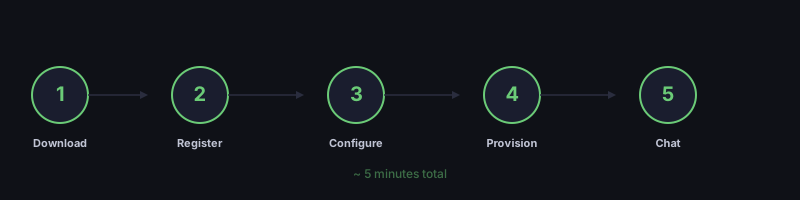
Step 1: Download and Install
Download Office Claws from the homepage for your operating system. The app is built with Wails, which means it runs natively — no Electron, no browser overhead.
- macOS: Open the
.dmgfile and drag Office Claws to your Applications folder. - Windows: Run the
.exeinstaller and follow the prompts. - Linux: Extract the
.tar.gzarchive and run the binary, or use the.debpackage on Debian-based distributions.
Launch the app after installation.
Step 2: Create Your Account
When Office Claws opens for the first time, you will see the login screen. Click Register to create a new account. Enter your email and a password. You will be logged in automatically after registration.
If you already have an account, enter your credentials and click Login.
Step 3: Configure Your VPS (Onboarding Step 1)
After logging in, the setup wizard begins. The first step configures your agent's infrastructure.
If You Chose Self-Hosted
Select "Own your VPS" and enter your DigitalOcean API token. Office Claws validates the token immediately and shows a confirmation. Your token is stored locally on your machine and never sent to Office Claws servers.
If You Chose Managed
Select "We provide the VPS" and Office Claws will handle infrastructure on your behalf. No cloud credentials needed — just proceed to the next step.
Step 4: Set Up Your Agent (Onboarding Step 2)
The second step of the wizard personalizes your agent. Configure each of the following:
Primary Goal
Choose what your agent should focus on:
- Work Assistant — Ideal for development tasks, code review, writing, and research.
- AI Researcher — Tuned for in-depth analysis, document summarization, and technical exploration.
- Just for Fun — A conversational companion for brainstorming and casual interaction.
Communication Style
Set your agent's tone:
- Friendly — Casual and approachable.
- Business — Professional and concise.
- Creative — Expressive and imaginative.
Name and Avatar
Give your agent a name and select one of the 12 available pixel-art avatars. This is how the agent will appear in your office — sitting at a desk, typing, grabbing coffee, or relaxing on the couch.
Connect Your Keys
Enter your Tailscale auth key and your AI provider API key. Both are stored locally on your machine. The AI key is used only once during provisioning to configure the agent's connection to your LLM provider — it is injected directly into the VPS over SSH and never passes through Office Claws servers.
Step 5: Provision Your Agent
Click Create Agent to begin provisioning. Office Claws shows a live progress screen with real-time status updates as it:
- Creates a VPS (from a pre-built snapshot for speed).
- Connects the VPS to your Tailscale network.
- Installs the agent runtime with Docker.
- Configures the AI provider connection.
The entire process takes about 2 to 3 minutes. Office Claws uses snapshot-based provisioning — the VPS boots from a pre-configured image rather than installing everything from scratch, cutting setup time by 90% compared to a vanilla install.
Step 6: Start Chatting with Your Agent
Once provisioning completes, your agent appears at a desk in the pixel-art office. Click the agent sprite to open the chat panel on the right side of the screen.
Try these first messages to test your setup:
- "What can you help me with?"
- "Summarize this document for me: [paste text]"
- "Review this code for bugs: [paste code]"
Your agent responds in real time. The chat panel shows the full message history, so you can pick up conversations where you left off.
Understanding the Pixel-Art Office
The office is more than a visual gimmick. It gives you an at-a-glance status overview of all your agents:
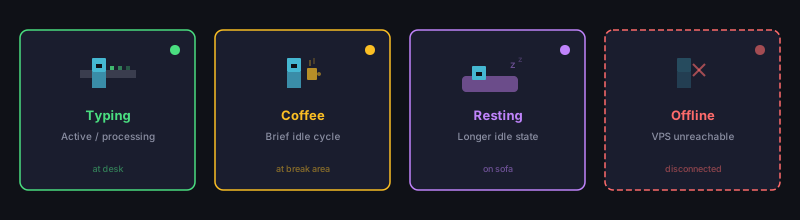
- Typing at a desk — The agent is actively processing or available.
- Grabbing coffee — The agent is in a brief idle cycle.
- Resting on the sofa — The agent is in a longer idle state.
- Sitting in the offline area — The agent's VPS is unreachable.
As you add more agents, each one gets assigned to a desk in the office. The layout supports up to six desks in the main room, a desk in the side office, and lounge seating in the break areas.
How Your API Keys Stay Secure
Security is a common concern when working with AI API keys. Here is how Office Claws handles it:
- Local storage only. Keys are stored on your machine, never on Office Claws servers.
- One-time injection. During provisioning, the key is sent directly to the VPS over an encrypted SSH connection through your Tailscale network.
- Budget-capped virtual keys. On the VPS, LiteLLM (an open-source proxy) creates a virtual key with spending limits. The real key stays locked in the LiteLLM configuration.
- No middleman. API requests go directly from your agent's VPS to the AI provider. Office Claws never proxies or inspects LLM traffic.
What Office Claws Automates: The Manual Setup You Skip
To understand the value of one-click provisioning, it helps to see what setting up a secure AI agent VPS looks like without it. Below is every step Office Claws handles automatically behind the scenes. If you were doing this yourself, plan for 45 minutes to an hour of terminal work per server — assuming you get every command right on the first try.
Create and Access the Server
Manually, you would log into DigitalOcean (or another cloud provider), create an Ubuntu 24.04 droplet, wait for it to boot, and SSH in as root. You also need to generate an SSH key pair, upload the public key, and confirm you can connect.
Create a Non-Root User
Running services as root is a security risk. You would need to create a dedicated user, add it to the sudo group, copy your SSH public key into its authorized_keys file, and set correct file permissions (700 for the .ssh directory, 600 for the key file). Then configure passwordless sudo access for specific commands — firewall, Tailscale, and Docker — so the agent process can manage those services without full root privileges.
Harden SSH
Out of the box, SSH on a fresh Ubuntu server allows root login and password authentication — both are common attack vectors. You need to write a hardening configuration that disables all of these:
- Root login (
PermitRootLogin no) - Password authentication (
PasswordAuthentication no) - Challenge-response authentication
- X11 forwarding
- Agent forwarding
Then validate the config syntax with sshd -t and restart the SSH service. One typo in this file and you lock yourself out of the server.
Install and Configure the Firewall
Next, install ufw (Uncomplicated Firewall) and set a deny-all-incoming default policy. You temporarily allow SSH on all interfaces so you don't lose your connection, then later — after Tailscale is running — you restrict SSH, HTTPS, and the agent gateway port (18789) to the Tailscale interface only and delete the public SSH rule. The final firewall state:
- All incoming traffic denied by default
- Port 22 (SSH): allowed only over Tailscale
- Port 443 (HTTPS): allowed only over Tailscale
- Port 18789 (agent gateway): allowed only over Tailscale
- All outgoing traffic allowed
Getting the order of operations wrong here — restricting SSH before Tailscale is up — means losing access to the server entirely.
Set Up Intrusion Prevention
Install and enable fail2ban, which monitors authentication logs and temporarily bans IP addresses that show brute-force login patterns. This adds a layer of defense even if SSH is eventually exposed through a misconfiguration.
Enable Automatic Security Updates
Install unattended-upgrades and apt-listchanges, then configure them with dpkg-reconfigure. This ensures the server applies security patches automatically without manual intervention. Skipping this step means your server falls behind on patches within weeks.
Allocate Swap Memory
Create a 2 GB swapfile at /swapfile, set permissions to 600, format it with mkswap, activate it with swapon, and add it to /etc/fstab so it persists across reboots. Without swap, a memory spike in the agent process can kill the container or crash the server.
Install and Configure Tailscale
Install Tailscale from their official install script, bring it up with your auth key and a hostname, wait for an IP assignment (up to 60 seconds), set the operator to your non-root user, request a TLS certificate, and enable HTTPS serving on the agent gateway port. This creates the encrypted tunnel that replaces public internet exposure for all agent communication.
Install Docker and Pull the Agent Image
Install Docker from the official install script, add your non-root user to the docker group, authenticate with the container registry if needed, and pre-pull the agent runtime image. Then launch the container with the correct environment variables, memory limits (1800 MB with 2 GB swap), host networking, a persistent volume, and a restart policy so it survives reboots.
Inject Your AI Provider Key
Pass your API key into the container as an environment variable during launch. Configure the agent to connect to the correct provider endpoint — Anthropic, OpenAI, Groq, OpenRouter, or Together — and set up the gateway with WebSocket connectivity, TLS, and operator permissions. Then wait for the gateway to initialize and extract the authentication token from the container logs.
Verify Everything Works
Confirm that the firewall rules are correct, Tailscale is connected, the Docker container is running, the agent responds through the gateway, and your local machine can reach it through the Tailscale network. Update your local SSH config and known_hosts for convenient access later.
What This Adds Up To
Here is the full list of packages and services configured on every Office Claws agent VPS:

| Component | Purpose |
|---|---|
ufw | Firewall with Tailscale-only access rules |
fail2ban | Brute-force intrusion prevention |
unattended-upgrades | Automatic security patches |
| SSH hardening config | Disables root login, passwords, forwarding |
| Tailscale | Encrypted networking and TLS certificates |
| Docker | Containerized agent runtime with memory limits |
| 2 GB swap | Memory overflow protection |
| Non-root user with scoped sudo | Principle of least privilege |
That is eight security layers configured across roughly 20 manual steps, each with its own failure modes. Miss the firewall order and you lock yourself out. Forget swap and the agent crashes under load. Skip unattended-upgrades and your server accumulates vulnerabilities. Misconfigure SSH hardening and you leave the door open — or shut it on yourself.
With Office Claws, you click Create Agent, watch a progress bar for two minutes, and get all of it — hardened, tested, and connected. The snapshot-based provisioning means every server starts from a pre-built, verified image, so there is zero drift between what you expect and what you get.
Troubleshooting Common Setup Issues
Provisioning takes longer than 5 minutes
This usually means the DigitalOcean API is experiencing delays. Check status.digitalocean.com for incidents. If the progress screen shows no movement for more than 5 minutes, cancel and retry.
Tailscale auth key is rejected
Make sure the key is ephemeral and has not expired. Tailscale auth keys can be set with short TTLs. Generate a new one from the Tailscale admin console if needed.
Agent appears offline after provisioning
Verify that your Tailscale client is running on your desktop. The agent communicates through the Tailscale network, so both sides need to be connected. Open the Tailscale app and confirm your machine shows as "Connected."
"Invalid API token" error during VPS setup
Double-check that your DigitalOcean token has both read and write permissions. Tokens with read-only access cannot create droplets.
What Comes Next
Once your first agent is up and running:
- Add more agents. Each agent gets its own VPS and desk in the office. On the self-hosted plan, additional agents cost nothing beyond the DigitalOcean droplet price.
- Experiment with different AI providers. Try Anthropic for one agent and OpenAI for another to compare their strengths on your workload.
- Explore agent personas. Different goal and communication style combinations produce noticeably different interaction patterns.
Setting up Office Claws takes a few minutes, but the result is a persistent AI workspace that stays running whether the app is open or not. Your agents keep working on their VPS, and you reconnect whenever you need them.