We run a small backend for Office Claws: a Go API, Postgres, a Caddy reverse proxy, and a self-hosted LiteLLM proxy, all in one Docker Compose stack on a single VPS. LiteLLM is the LLM gateway. During provisioning, the backend asks it to mint a budget-capped virtual key for a new agent.
That setup is ordinary, and it still broke three times in one week in June. None of the failures was exotic. Each one stayed quiet for a while, which is why each one hurt. This is the build log: what we saw, what was actually wrong, what we changed, and the lesson we'd pass on to anyone running a similar self-hosted stack.
| # | Incident | How it showed up | Fix |
|---|---|---|---|
| 1 | Moving image tag + tight memory limit | Agent onboarding failed with a vague client error | Pin by digest, raise the limit, fail loudly |
| 2 | Gateway migrations wiped a shared schema | relation "users" does not exist after a restart | Separate database for the gateway |
| 3 | $ in a secret, interpolated by Compose | Service booted fine, secret was silently wrong | Escape as $$, check compose config |
Incident 1: A Moving Tag Pulled a Heavier Build and OOM-Looped
Symptom. New agents stopped finishing setup. The desktop app failed at the onboarding step with "LiteLLM virtual key and base URL are required". That message came minutes after the provisioning request had already returned success, so it pointed us at the client first.
Root cause. Our compose file referenced LiteLLM by a moving tag:
litellm:
  image: ghcr.io/berriai/litellm:main-stable
  deploy:
    resources:
      limits:
        memory: 1500M
A routine deploy pulled whatever main-stable pointed to that day. The new build needed about 2.1 GiB to boot with two workers. Under a 1500M limit, the kernel killed it before it finished warming up, Docker restarted it, and the cycle repeated roughly every 62 seconds. By the time we caught it, the container had restarted 4,088 times over about three days.
Two things kept it quiet:
- Our backend swallowed the failure. When key minting failed, the provisioning handler logged a warning and returned
200with empty LLM fields. The real error only surfaced later, on the client, as a generic message. - The obvious diagnostic lied.
docker inspectshowed aRestartCountandExitCodethat looked healthy when we checked mid-cycle. What actually showed the loop was watching events live:
docker events --filter container=<litellm-container> --filter event=oom --filter event=die
# ... oom
# ... die (exitCode=137)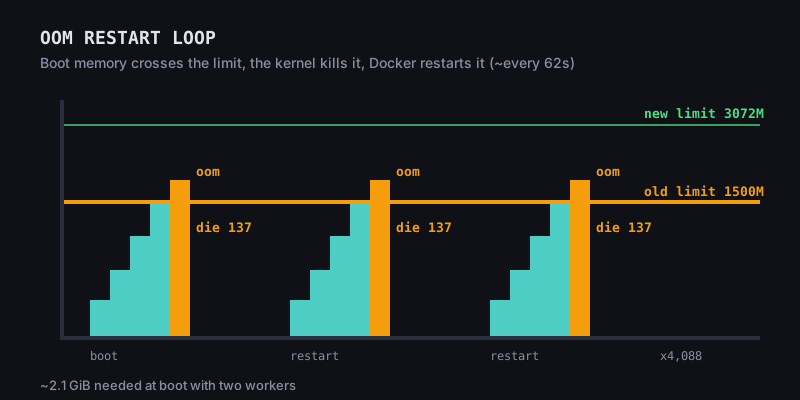
Fix. Three changes in one PR:
litellm:
  # Pinned by digest. Bump deliberately: verify boot memory fits the limit first.
  image: ghcr.io/berriai/litellm@sha256:<digest-you-tested>
  deploy:
    resources:
      limits:
        # Boot memory of the pinned image is ~2.1G with two workers.
        memory: 3072M
And in the provisioning handler, a failed key mint is now a hard 502 (or 503 if the gateway is not configured) instead of a 200 with blanks. A failure the user can retry right away is better than one that shows up later as a confusing error.
To find the digest of the image you've actually tested:
docker buildx imagetools inspect ghcr.io/berriai/litellm:main-stable
# or, for an image already pulled on the host:
docker inspect --format '{{index .RepoDigests 0}}' ghcr.io/berriai/litellm:main-stable
Lesson. A moving tag means an unreviewed upgrade on every deploy, and a memory limit sized for last month's image will eventually be too small. Pin the images you depend on by digest, and treat an upgrade as a change you test for boot memory, not something that happens as a side effect of a deploy. Also, when a dependency is required, fail at the point of the request. Optional-looking fallbacks are where silent incidents start.
Incident 2: The Gateway's Migrations Dropped Our Backend Tables
Symptom. After a restart, registration and login started failing with:
ERROR: relation "users" does not exist (SQLSTATE 42P01)The odd part: the backend logs showed our own migrations applying cleanly at boot. A quick check right after the restart looked fine. A minute later, the tables were gone.
Root cause. We had pointed both services at the same Postgres database to keep the setup small:
# backend.env
DB_DSN=postgresql://app:<password>@postgres:5432/app

# litellm.env
DATABASE_URL=postgresql://app:<password>@postgres:5432/app   # same database
LiteLLM manages its schema with Prisma. On every startup it diffs the live database against its own schema.prisma. Our backend's tables (users, agents, VPS records and so on) don't exist in LiteLLM's schema, so to Prisma they looked like drift. Its response was to reset the schema and re-apply its own migrations, which dropped every table that wasn't its own.
The reset ran about 40 to 70 seconds after boot. That timing explained the confusing logs. Our backend created its tables, the gateway finished its diff and wiped them, and any check made in the first minute looked fine.
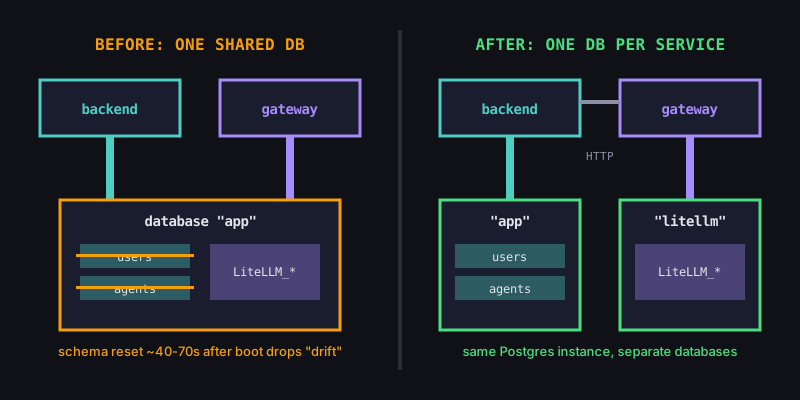
Fix. Give the gateway its own database. The backend talks to LiteLLM only over HTTP and never reads its tables, so there was no reason for them to share one.
CREATE DATABASE litellm OWNER app;# litellm.env
DATABASE_URL=postgresql://app:<password>@postgres:5432/litellmThen recreate the gateway so it builds its tables in litellm, restart the backend so it recreates its own tables in app, and drop the orphaned gateway tables from the old database. To verify, we restarted the gateway again, waited past the diff window, and confirmed that our tables survived and registration returned 200.
Lesson. Third-party services that manage their own schema assume they own the whole database. Don't let two migration tools share a schema unless both explicitly support it. Separate databases on the same Postgres instance cost almost nothing. Also, if a failure is delayed, check again after the delay: a check made one minute after boot wouldn't have caught this one. Finally, update the runbook. After the fix, our own setup notes still described the shared database, which means a rebuild from those notes would bring the bug straight back.
Incident 3: A $ in a Secret Was Silently Blanked
Symptom. Mostly nothing, which is the scary part. The backend booted and logged that its cloud provider client was initialized. That startup check only confirmed the credential was non-empty. The credential itself was wrong, so any real API call would have failed authentication.
The only visible clue was a warning at docker compose up that was easy to scroll past:
WARN[0000] The "Xk9def" variable is not set. Defaulting to a blank string.Xk9def was not a variable we had ever defined (the value here is made up). It was the characters right after a $ inside one of our secret values.
Root cause. Docker Compose v2 interpolates values in env_file files. A secret like this:
PROVIDER_API_PASSWORD=abc$Xk9defis read as abc + the value of $Xk9def (unset, so empty). Compose passes the shortened, wrong value to the container without an error.
Fix. Escape every literal $ as $$ when writing env files, then recreate the container:
sed -i '/^PROVIDER_API_PASSWORD=/ s/\$/$$/g' secrets/backend.env
docker compose up -d --force-recreate backend
We also added a check after writing any secrets file. It must return zero hits:
docker compose config 2>&1 | grep "is not set"One more trap: our backend image is minimal, so docker exec <ctr> printenv fails, and the error text can look like a value. To check what the container actually received without printing the secret, compare hashes:
docker inspect <ctr> --format '{{range .Config.Env}}{{println .}}{{end}}' \
  | grep '^PROVIDER_API_PASSWORD=' | cut -d= -f2- | shasum -a 256
Lesson. Your config loader is a parser, and it has its own rules about special characters. Find out what those rules are before you paste a randomly generated password into it. A startup check that only tests for "non-empty" will pass a corrupted secret. If you can, check credentials with a real request at boot, and treat interpolation warnings as errors.
What We Changed Overall
The fixes were small. The more useful outcome is a short checklist we now apply to every service in the stack:
- Pin images by digest for anything stateful or on the critical path. Upgrade on purpose, and check boot memory against the limit when you do.
- Size memory limits from measured boot peaks, not steady-state guesses, and leave headroom.
- Watch
docker eventsforoomanddie. Don't rely only on a singledocker inspectsnapshot. - One database per service that runs its own migrations.
- Verify after the delay, not just right after a restart.
- Fail loudly at the request when a required dependency is down. No
200with blank fields. - Run
docker compose configafter editing env files, and treat "variable is not set" as a blocker. - Keep the runbook in sync with the fix, or the next rebuild brings the bug back.
None of this is specific to LLM gateways. It applies to any small self-hosted stack where one person deploys and nobody is paged at 3am. For more on running services on a VPS, see our OpenClaw self-hosted guide, OpenClaw monitoring, and OpenClaw secrets management. For an earlier build log, see how we got provisioning under 3 minutes.
Running Agents Without Running the Gateway Yourself
If you want Codex agents on a VPS but don't want to operate this kind of stack, that's the job Office Claws does. Your agents run on your own Contabo VPS, Codex uses your existing ChatGPT subscription, and Office Claws costs $4.99/mo. Install the CLI with:
curl -fsSL https://officeclaws.com/downloads/install.sh | sh