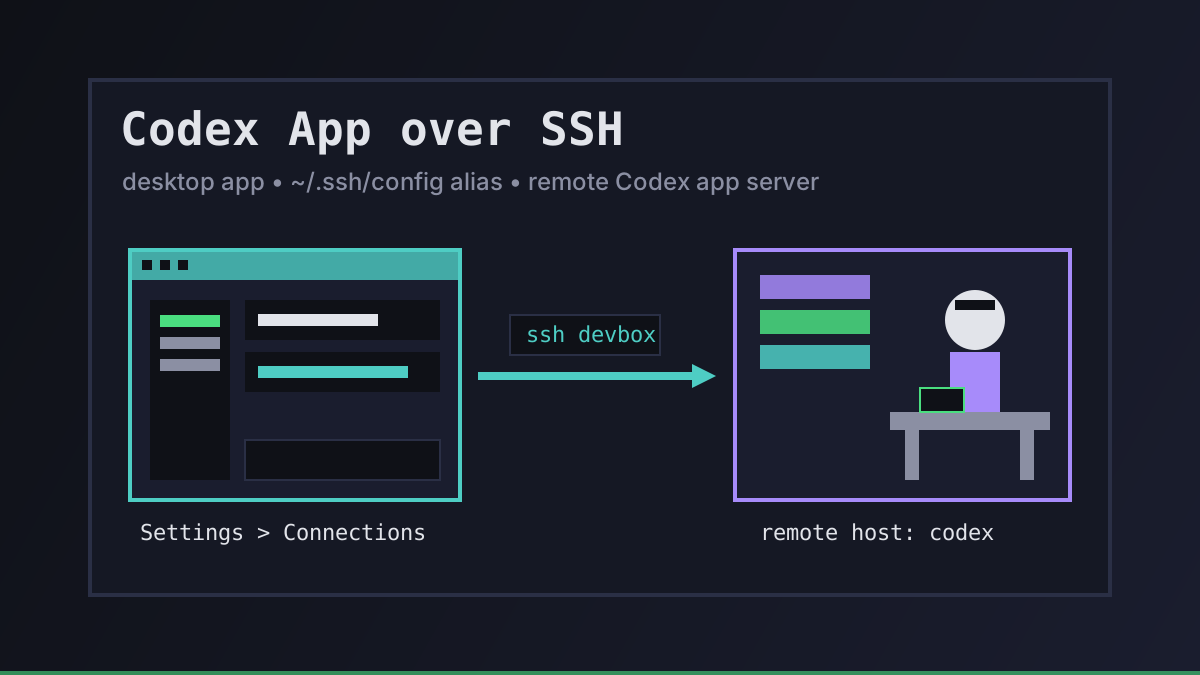
"Can the Codex app connect over SSH?" is one of the questions we see most from people moving Codex off their laptop. The answer changed this year, and a lot of older forum threads still say no.
Short version: yes. The Codex desktop app can open projects on an SSH host and run its chats against that machine's files and shell. The IDE extension and the CLI have their own routes. Below is what works today (checked on 20 October 2026 against OpenAI's docs), how to set it up, and what to do when you want the agent to keep working after you close the app.
Codex App SSH Remote: What Works Today
A naming note first. Since July 2026 the Codex app is part of the ChatGPT desktop app: you pick Codex inside it, and OpenAI's docs now say "ChatGPT desktop app" where they used to say "Codex app". The SSH feature is the same.
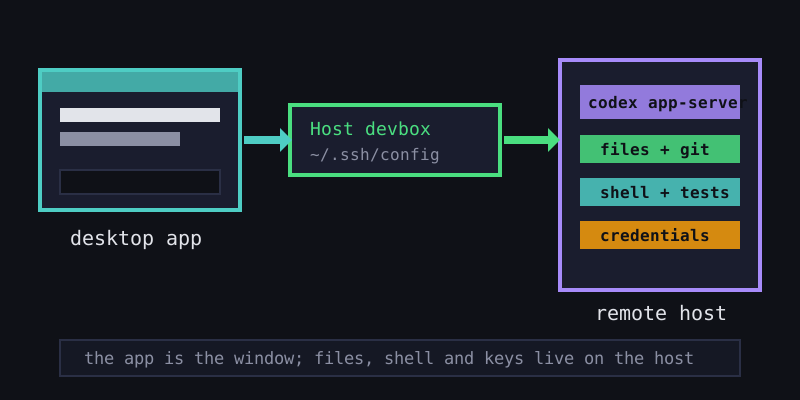
OpenAI's remote connections docs describe it like this: you add an SSH host, choose a project folder on it, and chats in that project "run commands, read files, and write changes on the remote host". Remote SSH went generally available in May 2026.
People mean four different things by "Codex remote", and they are easy to mix up:
| You want to… | Use | Where Codex runs |
|---|---|---|
| Work on a server's code from the desktop app | Codex app + SSH host (Settings > Connections) | On the remote host, started by the app over SSH |
| Work on a server's code from VS Code, Cursor or Windsurf | Codex IDE extension in a Remote-SSH window | On the remote host, inside the editor's remote server |
| Drive your own computer's Codex from a phone | Remote Control (pair by QR code) | On your Mac or PC, which must stay awake and online |
| Work in a plain terminal | ssh into the box and run the Codex CLI there | On the remote host |
"Codex remote control" is the phone feature, not SSH. It pairs the ChatGPT mobile app with a desktop host, and the docs say it stops when that host goes to sleep. There is also an experimental codex remote-control CLI command that the docs describe as being for managed remote-control clients and SSH remote workflows. Unless you are building tooling, you don't need it.
Run your first agent in about 3 minutes
Install the Office Claws CLI, connect your Contabo account and Codex subscription, and your agent gets its own VPS and a desk in the office.
curl -fsSL https://officeclaws.com/downloads/install.sh | sh$4.99/mo + your own Contabo VPS · keys stay in your keychain
How to Connect the Codex App to an SSH Host
The setup has four steps, all from the official docs.
1. Add a concrete host alias to your SSH config. Codex reads ~/.ssh/config, resolves aliases with OpenSSH, and ignores pattern-only entries like Host *:
Host devbox
  HostName devbox.example.com
  User you
  IdentityFile ~/.ssh/id_ed25519
2. Check that plain SSH works from the machine running the app:
ssh devbox3. Install Codex on the remote host and sign in there. The app starts a Codex app server on the remote host through the remote user's login shell, so codex must be on that shell's PATH. On a headless server, the device-code login avoids needing a browser on the box:
# on the remote host
npm install -g @openai/codex
codex login --device-auth
codex --version   # confirm it is on PATH in a login shell
4. Add the host in the app. Open Settings > Connections, add or enable the SSH host, and choose a remote project folder. New chats in that project now work on the server.
Some things to know:
- Remote projects use the remote host's filesystem, shell and credentials. Git keys,
.envfiles and API tokens come from the server, not your laptop. - OpenAI recommends normal SSH hygiene (trusted keys, least-privilege users) and says not to expose app-server ports on a public network. For access from outside your network, use a VPN or a mesh network such as Tailscale.
- You can hand a chat off between hosts only if both are connected and both have the same Git repository saved as a project. Handoff to Codex cloud isn't supported.
Codex in VS Code over Remote-SSH
If you live in an editor, there is no special Codex setting for SSH. OpenAI's IDE extension docs cover VS Code and compatible editors (Cursor, Windsurf) but don't mention Remote-SSH. Here is how the pieces work together.
VS Code's Remote-SSH model runs "workspace" extensions on the remote host, inside the VS Code Server. The Codex extension's manifest doesn't mark it as UI-only, so once you install it in the remote window it runs next to your remote files, and Codex works on the server's checkout. You sign in to Codex inside that remote window.
The catch: the session belongs to the editor window. Close VS Code or lose the connection, and you should assume the work stops with it.
Codex on Windows and SSH
Windows causes the most confusion, so here is what we could verify:
- Windows as the client. The ChatGPT desktop app runs on Windows, and the SSH docs list no OS limits for the machine running the app. Windows OpenSSH reads its config from
%USERPROFILE%\.ssh\config, which is the same file as~/.ssh/configin the steps above. - Windows as the SSH host. Not documented. A GitHub issue reports that native Windows hosts get through SSH auth and then fail at the app-server or project-folder step. If you can, make the remote a Linux machine.
- IDE extension on Windows. The extension has a
chatgpt.runCodexInWindowsSubsystemForLinuxsetting that runs Codex inside WSL. Users on the OpenAI community forum report that Remote-SSH into a Windows Server without WSL fails with a missingwsl.exeerror.
Keeping a Remote Codex Agent Running When You Close the App
This is where SSH in the app stops being enough. The desktop app starts and manages the remote Codex app server over SSH. OpenAI's docs don't promise that a chat keeps going after you close the app or your laptop sleeps, so plan as if it doesn't. Remote Control has the same limit, since the host has to stay awake and online.
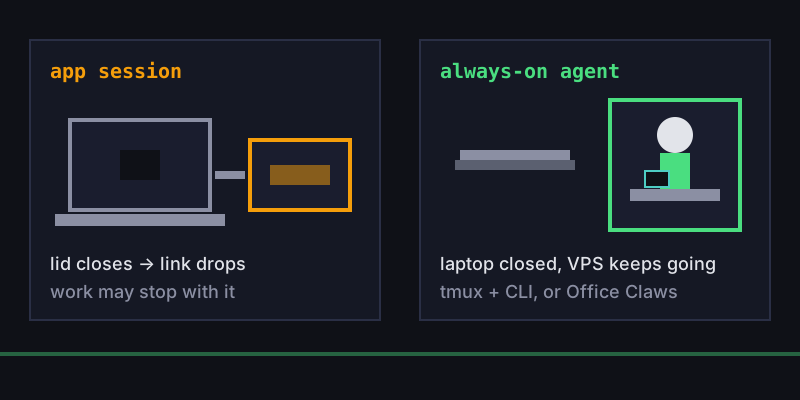
For work that runs for hours, the state has to live on the server, not in the app:
- The do-it-yourself route: SSH in, start
tmux, and run the Codex CLI inside it. We walk through that in Codex SSH Remote Workflow, and Long-Running Codex Tasks covers why persistent sessions matter. - The Office Claws route: we run a Codex agent permanently on a VPS in your own Contabo account, joined to your Tailscale network. You talk to it with
officeclaws chat, from the pixel office, or from Telegram, and it keeps working while your laptop is closed. Office Claws is $4.99/month. Contabo bills you directly for the VPS. Codex uses your own ChatGPT plan, connected withofficeclaws connect-codex.
To be clear about the limits: Office Claws doesn't replace the Codex app's SSH feature, and we don't support Claude Code subscriptions. It suits a Codex agent that should always be on, not a quick look at a server you're already logged into.
Recommendations
- To edit code on a server from the desktop app, use the built-in SSH host support. Set up a clean
~/.ssh/configalias, install and sign in tocodexon the remote, and use a Linux remote. - If you work in VS Code or Cursor, install the Codex extension inside a Remote-SSH window and treat the window as the session.
- For tasks that must outlive your laptop, run the CLI in tmux on the server, or let Office Claws keep an agent running there for you.
Related reading:
- Codex SSH Remote Workflow: the CLI-over-SSH setup we use day to day
- Long-Running Codex Tasks: keeping hours-long work alive across disconnects
- Codex Subscription vs API Cost: which Codex bill makes sense for a remote agent