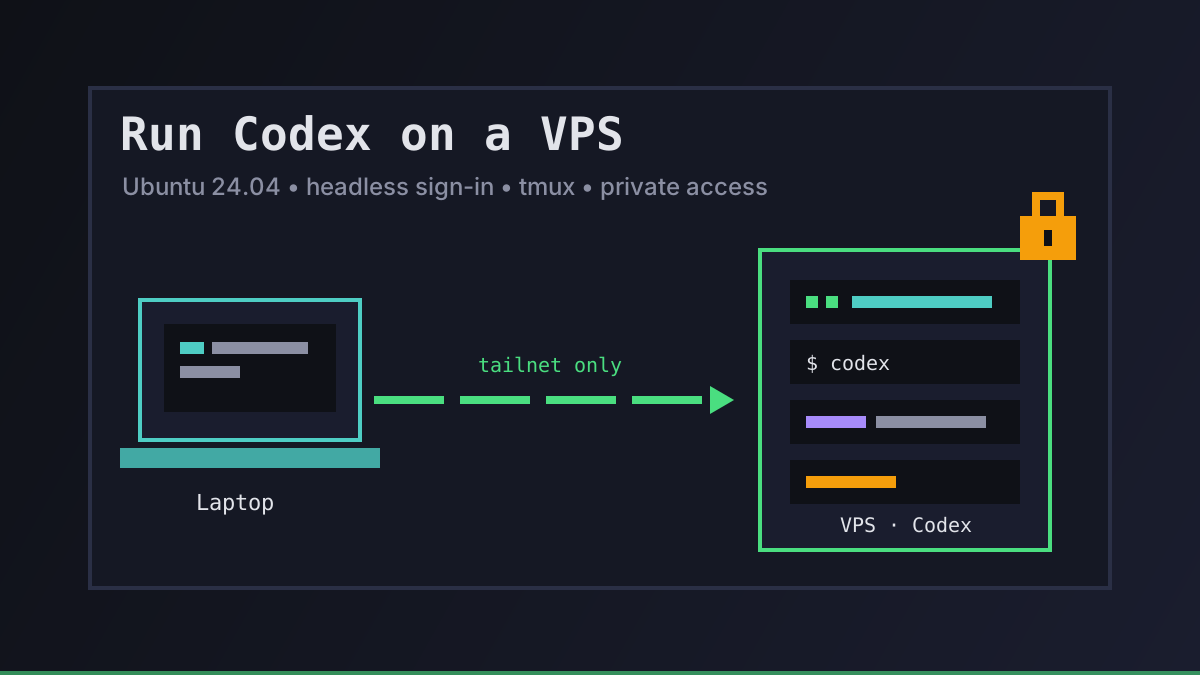
Running Codex on your laptop works until the task outlives the lid. A long refactor, a nightly review, or a test suite that takes an hour all want a machine that stays on, keeps a clean checkout, and does not care which Wi-Fi you are on.
That machine is usually a small VPS. This guide is the setup we would do by hand on a fresh Ubuntu 24.04 server: size it, lock it down, install the Codex CLI, sign in without a browser, keep sessions alive, and reach it without exposing SSH to the internet.
What Codex Needs From a VPS
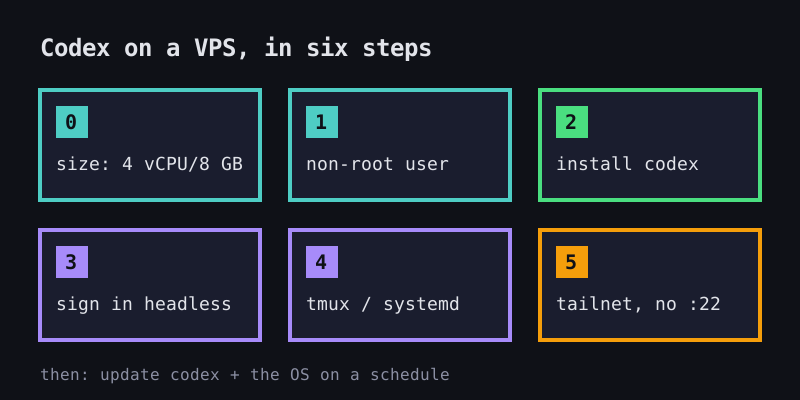
The model runs on OpenAI's side, so the Codex CLI on a VPS is mostly a terminal client plus whatever your repo does: installs, builds, tests. OpenAI's install docs list Ubuntu 20.04+ or Debian 10+ on Linux, 4 GB of RAM minimum and 8 GB recommended, and Git 2.23+ as optional but recommended.
That matches what we use for our own agents:
| Minimum | Recommended | Why | |
|---|---|---|---|
| CPU | 2 vCPU | 4 vCPU | Your builds and tests, not the model |
| RAM | 4 GB | 8 GB | OpenAI's own recommendation for the CLI |
| Disk | 50 GB | 150 GB | Repos, node_modules, build caches, logs |
| OS | Ubuntu 24.04 | Ubuntu 24.04 | Current LTS, supported by Codex and Tailscale |
One Codex workload per VPS is the boring, safe choice. If a task goes sideways, the blast radius is one small machine you can wipe and rebuild.
Run your first agent in about 3 minutes
Install the Office Claws CLI, connect your Contabo account and Codex subscription, and your agent gets its own VPS and a desk in the office.
curl -fsSL https://officeclaws.com/downloads/install.sh | sh$4.99/mo + your own Contabo VPS · keys stay in your keychain
Step 1: Create a Non-Root User
Fresh VPS images usually hand you root. Do not run an agent that edits files and runs commands as root. Create a dedicated user and copy your SSH key to it:
# as root, once
adduser codex
usermod -aG sudo codex
mkdir -p /home/codex/.ssh
cp ~/.ssh/authorized_keys /home/codex/.ssh/
chown -R codex:codex /home/codex/.ssh
chmod 700 /home/codex/.ssh
chmod 600 /home/codex/.ssh/authorized_keys
Log in as codex from a second terminal before you close the root session. Everything below runs as that user.
Step 2: Install the Codex CLI
OpenAI ships a standalone installer for macOS and Linux, so you do not need Node.js on the server. Install the basics, then Codex:
sudo apt update && sudo apt install -y git tmux curl
curl -fsSL https://chatgpt.com/codex/install.sh | sh
codex --version
If you already manage Node on the box, npm install -g @openai/codex is the other official route. Both are listed in the openai/codex README and the Codex CLI docs.
Step 3: Sign In — ChatGPT Plan or API Key
Running codex for the first time offers Sign in with ChatGPT. On a laptop that opens a browser. On a VPS there is no browser, so you have three options from OpenAI's authentication docs:
Device code (preferred for headless boxes). It is in beta and you must first enable it in your ChatGPT security settings:
codex login --device-authSSH port forwarding. The login callback listens on localhost:1455. Forward that port from your laptop, then open the printed address in your local browser:
# on your laptop
ssh -L 1455:localhost:1455 codex@your-vps
# then, inside that SSH session
codex login
API key. Pipe it in instead of pasting it into shell history:
printenv OPENAI_API_KEY | codex login --with-api-keyWhich one to choose is mostly a billing question. Codex is included in ChatGPT Free, Go, Plus, Pro, Business, Edu and Enterprise plans, with usage limits that depend on the plan. An API key bills per token at API rates instead. We break down the math in Codex Subscription vs API Cost.
Whichever you pick, Codex caches credentials in ~/.codex/auth.json (or the OS credential store). OpenAI's advice is to treat that file like a password: never commit it, paste it into a ticket, or share it in chat.
Step 4: Keep Sessions Alive With tmux and systemd
An SSH session dies when your laptop sleeps. Anything Codex was doing in it dies too. For interactive work, run Codex inside tmux:
tmux new -s codex
cd ~/work/project
codex
# detach with Ctrl-b then d; later, from any machine:
tmux attach -t codex
For recurring jobs, skip the terminal entirely. codex exec runs non-interactively, prints the final answer to stdout, and defaults to a read-only sandbox, so you have to opt in to edits with --sandbox workspace-write (non-interactive docs). A systemd timer turns it into a nightly job:
# /etc/systemd/system/codex-nightly.service
[Unit]
Description=Nightly Codex review

[Service]
Type=oneshot
User=codex
WorkingDirectory=/home/codex/work/project
ExecStart=/bin/bash -lc 'codex exec --sandbox workspace-write "review the last day of commits and write findings to REVIEW.md"'

# /etc/systemd/system/codex-nightly.timer
[Timer]
OnCalendar=*-*-* 03:00
Persistent=true

[Install]
WantedBy=timers.target
sudo systemctl daemon-reload
sudo systemctl enable --now codex-nightly.timerWe go deeper on both patterns in Long-Running Codex Tasks and Codex CLI Background Tasks.
Step 5: Reach the VPS Safely
A VPS with port 22 open to the world gets brute-force attempts within minutes. A VPS running an agent with your Codex credentials on disk is a worse place to get that wrong.
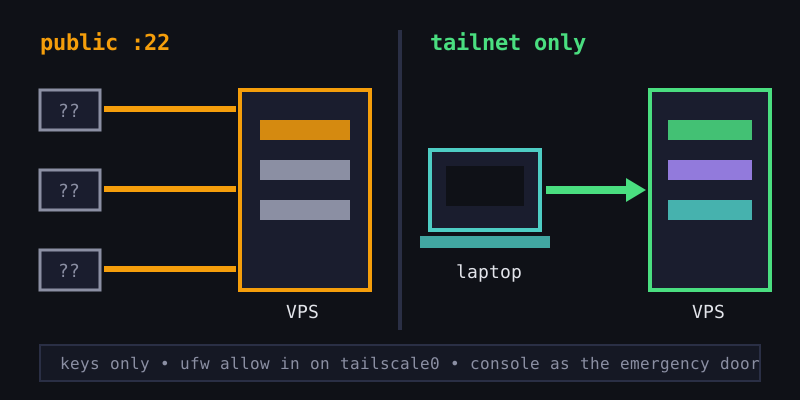
We do three things:
-
Keys only. In
/etc/ssh/sshd_config, setPasswordAuthentication noandPermitRootLogin no, thensudo systemctl restart ssh. -
Join a private network. Install Tailscale and connect the server to your tailnet:
curl -fsSL https://tailscale.com/install.sh | sh sudo tailscale up -
Close the public port. Once you can SSH in over the server's Tailscale IP, allow inbound traffic only on the Tailscale interface:
sudo ufw allow in on tailscale0
sudo ufw enable
Do step 3 from a session that is already on the tailnet, or you will lock yourself out. Keep your provider's web console as the emergency door. The day-to-day SSH flow we use after that is in Codex SSH Remote Workflow.
Step 6: Keep Codex Updated
Codex ships often. OpenAI's documented update path for the standalone install is to run the installer again; for npm installs, reinstall the package:
curl -fsSL https://chatgpt.com/codex/install.sh | sh
# or, if you used npm
npm install -g @openai/codex
Update the OS too. sudo apt update && sudo apt upgrade on a schedule, or enable unattended-upgrades for security patches.
What It Costs
| Item | What you pay | Notes |
|---|---|---|
| VPS | Your provider's monthly price | 4 vCPU / 8 GB entry plans are enough for one agent |
| Codex via ChatGPT plan | Your existing plan | Usage limits depend on the plan |
| Codex via API key | Per-token API pricing | Predictable only if you cap usage |
| Tailscale | Free for personal use | The Personal plan is enough |
For most people a ChatGPT plan is the cheaper way to run one VPS agent, and API keys make sense for CI or bursty automation. If you want several agents side by side, see How to Run Multiple Codex Agents.
Or Let Office Claws Do These Steps
Everything above is what Office Claws automates. You bring a fresh Ubuntu 24.04 VPS in your own Contabo account and a Tailscale auth key, then run:
officeclaws onboard --name Mona
officeclaws connect-codex
onboard adds a dedicated SSH key, creates a separate user, turns on the firewall, brute-force protection and automatic security updates, disables password and root login, joins the server to your tailnet, closes public SSH, and starts the agent. It usually takes 5–10 minutes. connect-codex signs the agent in with your ChatGPT plan through OpenAI's official sign-in, so there is no API key and no per-token bill.
To be clear about the trade-off: you get an agent you chat with from the CLI or Telegram, with scheduled tasks, rather than a raw Codex terminal you script yourself. Office Claws is $4.99/month; the VPS is billed by Contabo directly. The full walkthrough is in the quick start.
Recommendations
Start with one VPS, one user, one Codex session in tmux. Get device-code sign-in working, close the public SSH port, and only then add timers or a second agent. If you would rather skip the setup, let Office Claws do it and spend the time on the actual task.
Related reading:
- Codex SSH Remote Workflow — the day-to-day SSH loop once the VPS is running
- Long-Running Codex Tasks — why persistent sessions matter once work takes hours
- Codex CLI Background Tasks — running Codex without a terminal attached
- How to Run Multiple Codex Agents — scaling from one VPS to a small team
- Codex Subscription vs API Cost — which Codex bill makes sense for a VPS agent